
Team
Seats and team features are available on the Developer and Enterprise plan users only.
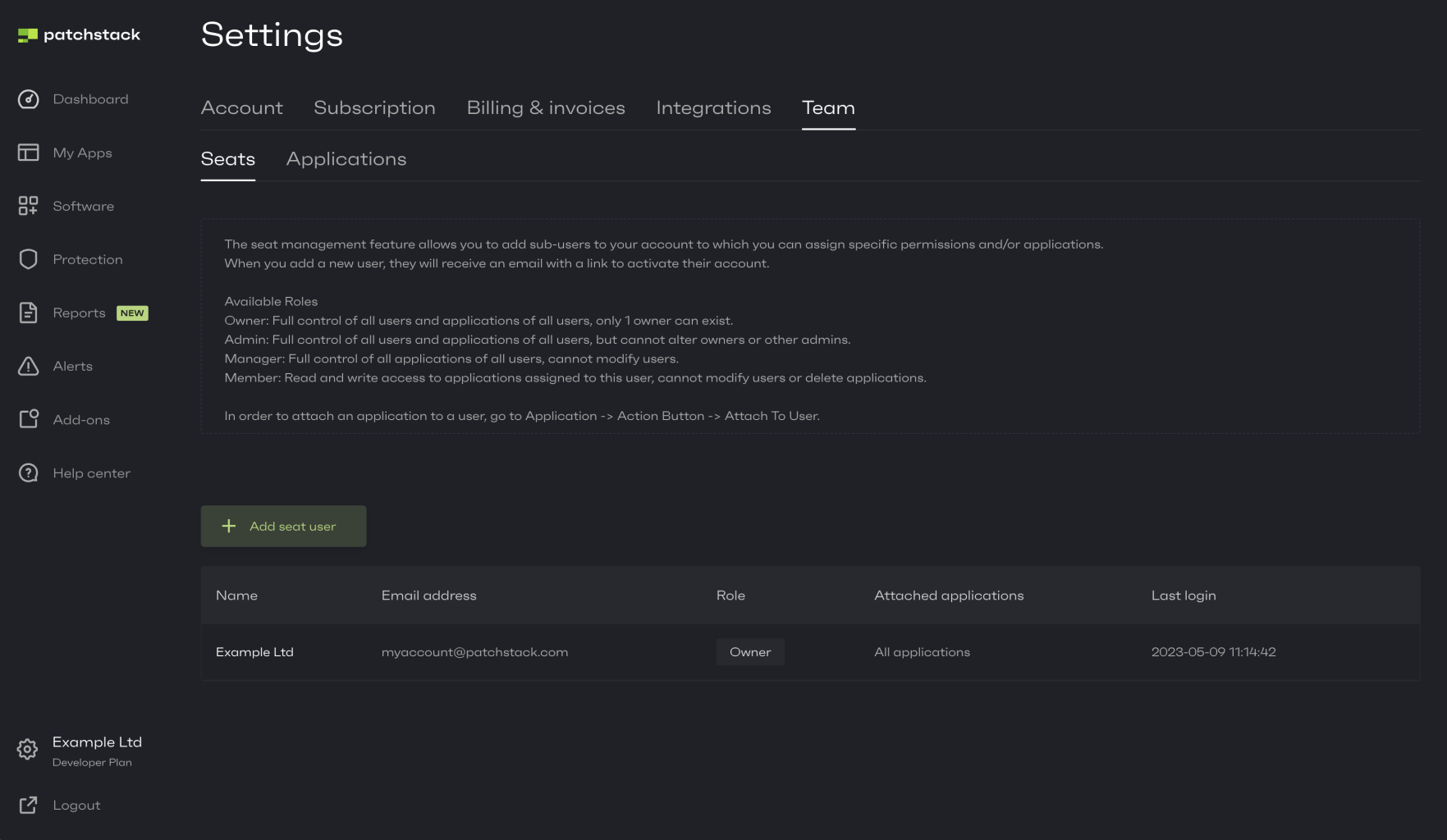
To manage your seats and team settings, click on your name on Patchstack App (at the bottom left corner of the screen), then navigate to the Team page, or click here: https://app.patchstack.com/team
On the Team page you can manage the seats. The seat management feature allows you to add sub-users to your account to which you can assign specific permissions and/or sites.
When you add a new user, they will receive an email with a link to activate their account.
On the Enterprise plan the number of seats is custom — it is whatever your agreement with our sales team covers, not a fixed number set by the plan.
Available roles
Section titled “Available roles”Every seat user you add has one of the following roles.
- Owner — Full control of all sites and users. Only one owner can exist.
- Admin — Full control of sites and lower-level users. Cannot alter the owner or other admins.
- Manager — Full control of all sites. Cannot modify users.
- Operator — Editing access only to sites assigned to them. Cannot modify users, cannot delete sites, and cannot add new sites.
- Customer — A new Patchstack account that your invitation creates, so the person you invite must not already have a Patchstack account. It inherits your subscription type, and it is not part of your own account where permissions are concerned. The Customer owns and manages their own site(s). Sites you assign to a Customer are view-only for them. Customers cannot add sites on your plan.
In order to attach a site to a user, go to Site > Action button > Attach To User.
Adding a seat user
Section titled “Adding a seat user”To add a seat user, click on Add seat user.
Add a name, email address and role of the seat user.
Note that you can only add email addresses that have not yet registered in Patchstack. This applies to every role, including Customer — the invitation always creates a brand new Patchstack account.
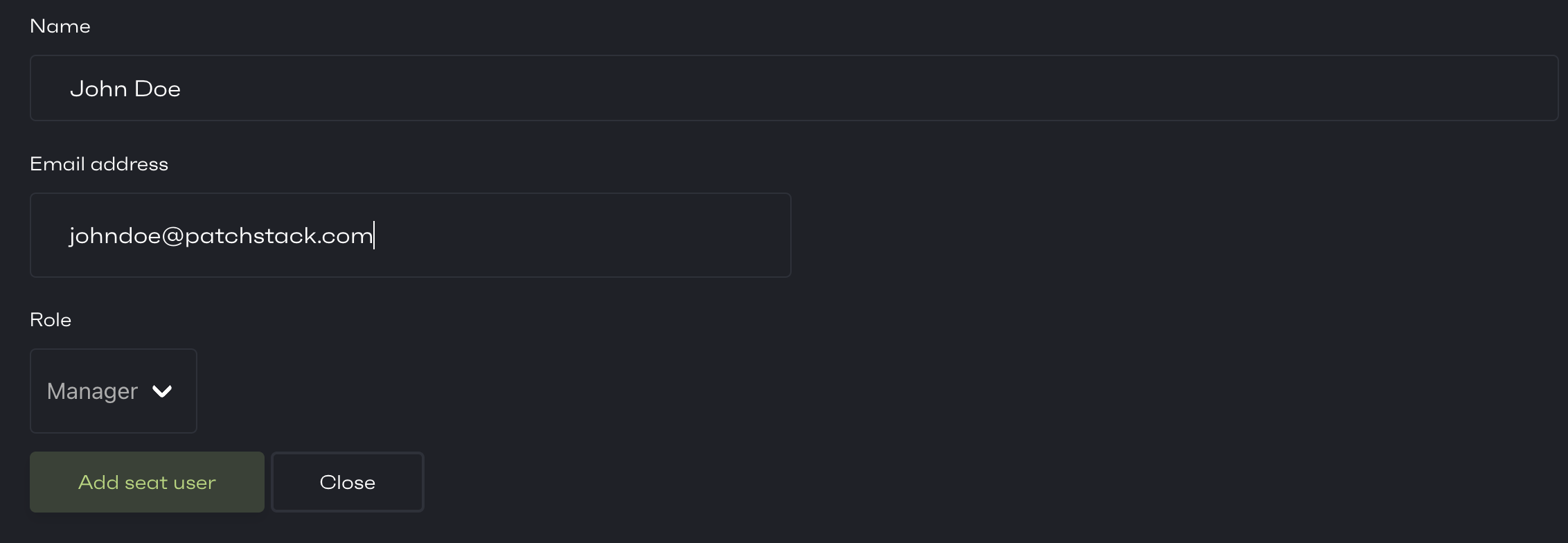
After adding the user, you can see the added user in the table below.
An invitation will be sent to that email asking to register an account on Patchstack App.
When your seats are full
Section titled “When your seats are full”If every seat on your plan is already taken, the invite is refused and the panel tells you why.
- On the Developer plan you can buy the seat as part of the invite. The panel states the charge before you commit — for example “Your next monthly additional seat (2→3) charge will be $72.” — and the button reads Invite additional user for $24/mo. Confirming adds the seat to your subscription and sends the invite together.
- On plans that do not include seat users, no purchase can lift the refusal. The panel shows Manage your subscription instead, which takes you to the Upgrades page to change plan.
Enterprise plans do not hit this refusal, because their seat count comes from the agreement rather than a plan limit. If you need more seats than you agreed, speak to your account contact.
Attaching an Operator seat user to sites
Section titled “Attaching an Operator seat user to sites”If you assigned a user the Operator role, you can choose which sites you want to attach this user.
For that, scroll down to the Sites table.
You can see all your sites in this view.
Click on Action and Attach to user on the corresponding site.
You will be shown a popup, where you can choose, which seat attaches to the site.
Pick the newly created user and click on “Attach”.
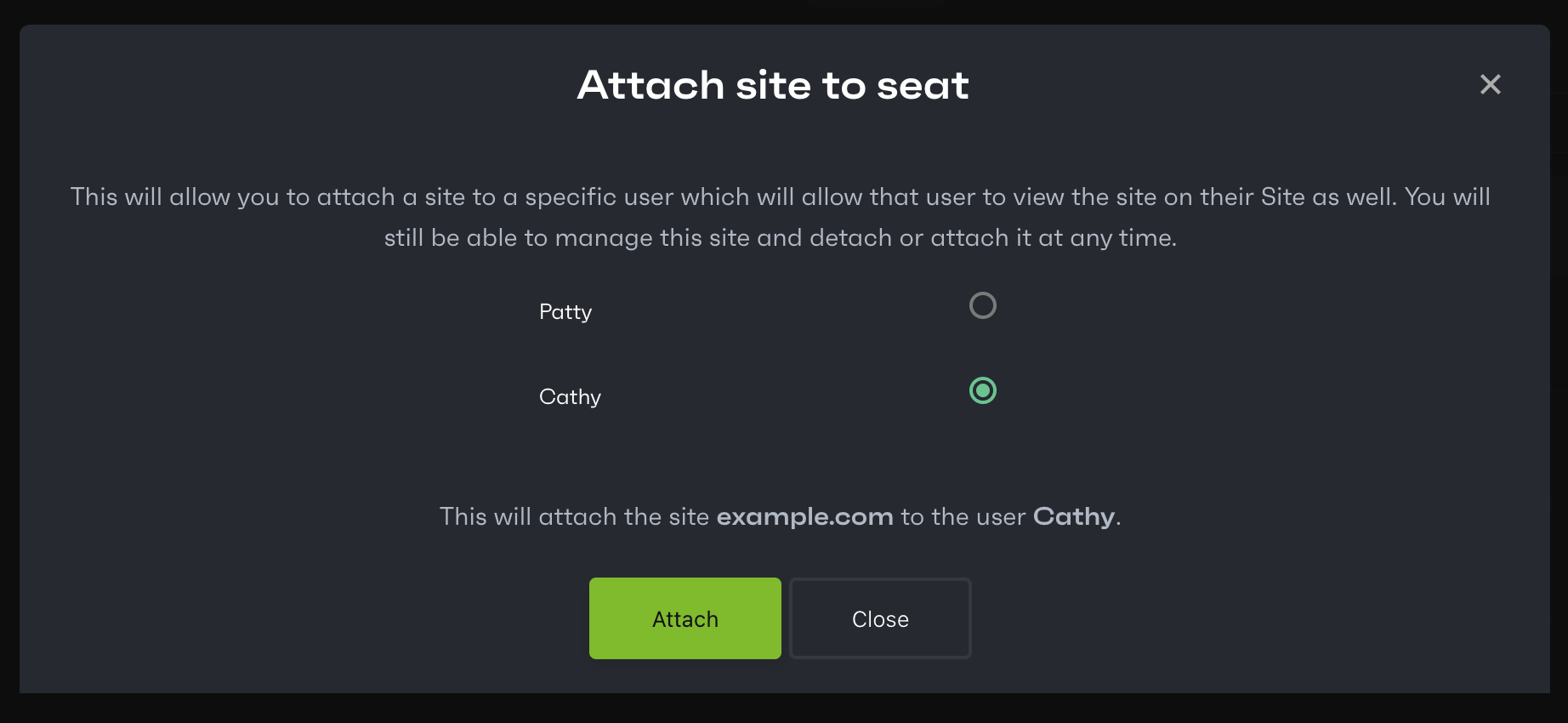
Now the new user can manage the site from their own Patchstack App account.
Detaching a seat user from the site
Section titled “Detaching a seat user from the site”To detach a user from managing the site, scroll down to the Sites table on the page. Pick a site and click Action and Detach from user. You will be shown a confirmation popup.